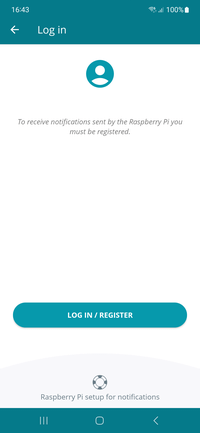
Login / Register

Log in or register on RaspController

To send notifications from the Raspberry Pi to the RaspController app you need to be registered.

Then open the app, go to the “Raspberry Pi Notifications” section and register or log in.

The “Notifications” function is only available in the PRO version of the application.

From the app interface take note of the User API Key, you will need it on the Raspberry Pi to send notifications.


To send and receive notifications, both the Raspberry Pi and RaspController must be connected to the internet.

Download the library

Download and install the notification library on your Raspberry Pi

1. On your Raspberry Pi, create the folder that will host your project.
Open the terminal, navigate to the folder where your projects are stored, and create a new folder (I’ll call it “RaspController Notification Proj,” but you can name it whatever you like):

mkdir "RaspController Notification Proj"


2. Create your virtual environment

Go to your project folder:

cd "RaspController Notification Proj"

and choose a name for your environment (I’ll call it raspc_env, but you can name it whatever you like). This will create a new folder called “raspc_env.”

python3 -m venv raspc_env


3. Activate the virtual environment

source raspc_env/bin/activate

You’ll notice your terminal prompt change to show the environment name (e.g., (raspc_env)$). This means you’re in the virtual environment!


4. Update the standard Python package manager “pip” and install the raspc-notif library.

Note 1: You can now only use “python” instead of “python3” because we’re in a virtual environment.

python -m pip install --upgrade pip
python -m pip install --upgrade raspc-notif

Note 2: The  "install --upgrade" parameters install the package if it isn’t present or upgrade it if it’s present.
Note 3: It’s recommended to keep the raspc-notif library up to date.
Note 4: You can find the library documentation here: raspc-notif documentation


5. Add your custom script

Create your Python scripts inside your “RaspController Notification Proj” project folder, following the example below.


6. Deactivate the virtual environment

When you’re finished working, simply type:

deactivate

The terminal prompt will return to normal.


Warning: Python virtual environments (the raspc_env folder) cannot be moved or renamed after they are created.
If the absolute path changes because the parent folders have been renamed or moved, you must delete the virtual environment with:

rm -rf raspc_env

and create a new, clean environment:

python3 -m venv raspc_env
raspc-notif library on PyPi

cpu_temp.py

Example of python code to send a notification when an event occurs

from raspc_notif import notif
from time import sleep
import subprocess

# ------------------------------------------------------------------
# IMPORTANT: Enter the User API Key you find in the RaspController app
# ------------------------------------------------------------------
sender = notif.Sender(apikey = "ENTER_API_KEY_HERE")

# Infinite loop to continuously get data
while True:
	
	# Gets data once every 5 seconds
	sleep(5)
	
	# Gets the CPU temperature
	try:
		cpu_temp_str = subprocess.check_output(["cat", "/sys/class/thermal/thermal_zone0/temp"]).decode("utf-8").strip()
		cpu_temp = float(cpu_temp_str) / 1000
	except Exception as e:
		print(f"Could not read temperature: {e}")
		continue
	
	# Check if the temperature exceeds a certain threshold
	if cpu_temp > 70:
		
		# Send notification to RaspController
		notif_message = f"The CPU has reached the temperature of {cpu_temp}^C"
		notification = notif.Notification("Attention!", notif_message, high_priority = True)
		
		print(f"Temperature threshold exceeded ({cpu_temp}^C). Sending notification...")
		result = sender.send_notification(notification)
		
		# Check if the submission was successful
		if result.status == notif.Result.SUCCESS:
			print(result.message)
		else:
			print(f"ERROR: {result.message}")
			
		# Wait 6 minutes before sending a notification again
		# This prevents spamming notifications
		if result.status != notif.Result.SOCKET_ERROR:
			sleep(60 * 6)

About notifications

Setting the duration of a message

FCM usually delivers messages immediately after they are sent. However, this may not always be possible. For example, if the platform is Android, the device may be turned off, offline, or otherwise unavailable. Or FCM may intentionally delay messages to prevent an app from consuming excessive resources and negatively impacting battery life.
When this happens, FCM stores the message and delivers it as soon as possible.


Setting the priority of a message (only Android)

There are two options for assigning delivery priority to downstream messages: normal priority and high priority. While the behavior differs slightly between platforms, normal and high priority message delivery works like this:
• Normal priority. Normal priority messages are delivered immediately when the app is in the foreground. For background apps, delivery may be delayed. For less urgent messages, such as new email notifications, UI sync, or background app data sync, choose normal delivery priority.
• High priority. FCM attempts to deliver high priority messages immediately even if the device is in Doze mode. High priority messages are for time-sensitive, user-visible content.


Maximum message rate

A notification can be sent at most every 5 minutes


Text limit

The notification title must be less than 200 characters and the message body cannot exceed 1000 characters.

rc.local

Use rc.local to run the script on startup

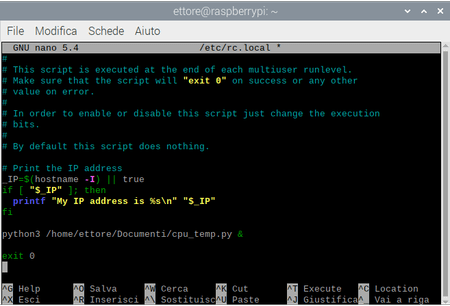
1. Open the terminal and type the following command to open the rc.local file:

sudo nano /etc/rc.local

2. In the rc.local file, enter the following line of code before the “exit 0” line:

"/home/pi/venv/bin/python" "/home/pi/myscript.py" &

Here, replace /home/pi/myscript.py with the name of your script with the absolute path and /home/pi/venv/bin/python with the absolute path to the Python script located in your virtual environment; see “creating a virtual environment” on this page.
(Notice that the command ends with the ampersand (&) symbol. This to inform the system that the program we’re scheduling runs continuously, so it shouldn’t wait for your script to finish before starting the boot sequence. Do note that failing to add ampersand in the command will cause the script to run forever, and your Pi will never boot up.)

3. After that, hit CTRL + O to save the file, and then CTRL + X to close the editor.

4. Finally, enter sudo reboot.

Cron jobs

Use cron to schedule your script

Alternatively you can use cron to schedule the execution of your script (remember to remove the “while true” in your script, if present).


Install cron by running this command from the terminal:

sudo apt install cron

Once cron is installed, remember to make sure it is enabled and running using the systemctl command provided by systemd:

sudo systemctl enable cron

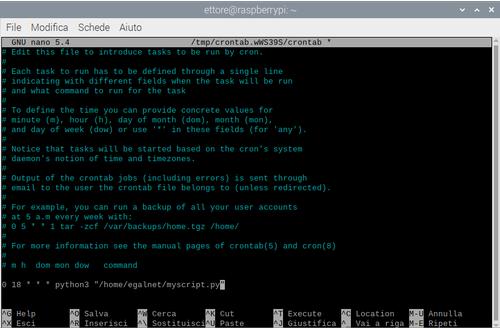
Now add a job at the end of the file by typing:

crontab -e

Use the appropriate syntax   *  *  *  *  * "/home/pi/venv/bin/python" "/home/pi/myscript.py"
You can use the online tool for cron schedule expressions: https://crontab.guru/

Finally, hit CTRL + O to save the file, and then CTRL + X to close the editor.