Custom Widgets

Do you have a sensor not supported by the application? Create your custom widget! Write your script on the Raspberry Pi and read the results from the RaspController app.

1. On your Raspberry Pi, create the folder that will host your project.
Open the terminal, navigate to the folder where your projects are stored, and create a new folder (I’ll call it “MyCustomWidgets”, but you can name it whatever you like):

mkdir "MyCustomWidgets"


2. Create your virtual environment

Go to your project folder:

cd "MyCustomWidgets"

and choose a name for your environment (I’ll call it raspc_env, but you can name it whatever you like). This will create a new folder called “raspc_env.”

python3 -m venv raspc_env


3. Activate the virtual environment

source raspc_env/bin/activate

You’ll notice your terminal prompt change to show the environment name (e.g., (raspc_env)$). This means you’re in the virtual environment!


4. Add your custom script

Create your Python scripts (which we’ll call myscript.py in our example) in your “MyCustomWidgets” project folder.
The script will read the sensor and print at least one result. This result will be captured by RaspController and displayed.

The result must be placed within the numbered <result></result> tags. Up to 9 results can be printed (example: <result9>123.4</result9>).

Do not use infinite loops (while True) in your script. The workflow should be:
a. start of the script;
b. read data from the sensor (and process it if necessary);
c. print the results; example:  print(result1)...
d. end of the script.

If you need to display constantly updated results, use the app’s “recursive” function, which will:
– run your script
– display the results
– wait a second
– rerun the script (RaspController will loop until the app is running).

If something is printed from the script without the <result> tags, the app will display a dialog box with the text; this is useful for reporting errors:

print("This is my error text")


5. Deactivate the virtual environment

When you’re finished working, simply type:

deactivate

The terminal prompt will return to normal.


Warning: Python virtual environments (the raspc_env folder) cannot be moved or renamed after they are created.
If the absolute path changes because the parent folders have been renamed or moved, you must delete the virtual environment with:

rm -rf raspc_env

and create a new, clean environment:

python3 -m venv raspc_env
import random 

# Generating a string that contains a random number
# This simulates reading sensor data
value1 = str(random.randint(0, 100)) 
value2 = str(random.randint(0, 100)) 
value3 = str(random.randint(0, 100)) 

# Preparation of the result 
result1 = f"<result1>{value1}</result1>"
result2 = f"<result2>{value2}</result2>"
result3 = f"<result3>{value3}</result3>"

# Print the result that will be read by the application 
print(result1) 
print(result2) 
print(result3)

Python example script

App Configuration

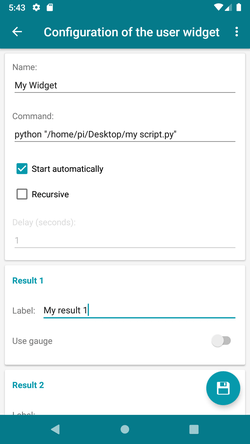
Create a new “User Widget” by entering the name and command to run yout script.
(for example: "/home/pi/MyCustomWidgets/raspc_env/bin/python" "/home/pi/MyCustomWidgets/myscript.py").

When using the Widget, the script will be executed and at the end the result will be shown in the application.

In this step it is possible to assign a label to be associated with each result.

Recursion

Important: Do not use infinite loops in your scripts to show updated results. Instead, use the appropriate “Recursive” function of the app.

The app will execute the script, when it receives a result it will display this. In “recursive” mode, after viewing the data the script will be run again. If the script fails or a dialog is shown, the recursion stops and the script must be restarted manually.

If the “Recursive” mode is active, it is possible to set a delay value between one reading and another (at least 1 second is recommended).

Results

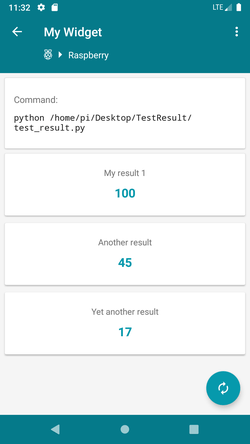
The results obtained by the script will be displayed in the application together with the labels assigned during configuration.

It is possible to show the results as plain text or as a gauge.

Use Gauge

RaspController - Custom widget

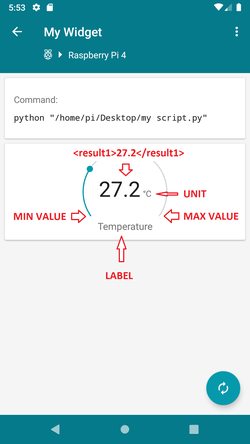
Instead of plain text, you can show the results with a gauge.

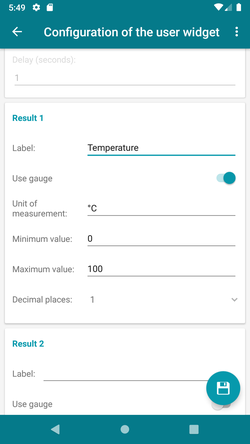
In the configuration phase, select “Use gauge” and also set the minimum value, the maximum value, the unit of measurement and the number of decimal places.


IMPORTANT: to use the gauge, your script must return only a numeric value (without a unit of measurement): <result1>27.2</result1>

If you return a value that also contains a string (eg <result1>Temp = 27.2°C</result1>), the gauge cannot be used and the result will be displayed as plain text.